Efficient Multitasking: The Problem at Hand
As any Mac user knows, the built-in Command + Tab functionality is limited; it allows you to switch between applications but fails to show all open windows, especially those that are minimized. This limitation can be frustrating, particularly when you have multiple windows open within a single application. Have you ever found yourself switching to an app only to realize that the window you need is minimized? This scenario disrupts your flow and wastes precious time.
In today’s fast-paced world, efficient multitasking is vital. Whether you are a writer, a developer, or someone who juggles numerous tasks daily, being able to switch between windows quickly can enhance productivity. This is where alt-tabr comes into play, providing a solution to the very problem that many Mac users face.
What is alt-tabr?
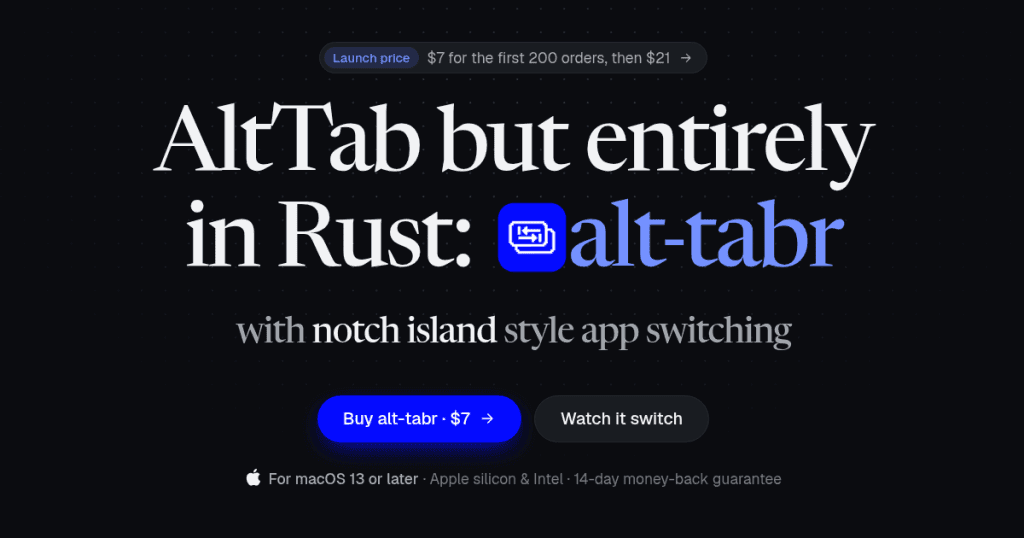
alt-tabr is a native macOS window switcher designed to enhance your productivity by allowing you to see and switch between all open windows, including minimized ones. Unlike macOS's default Command + Tab feature, alt-tabr lets you jump directly to any specific window, making it particularly useful for users who often work with multiple documents or applications simultaneously.
Written entirely in Rust, alt-tabr is a lightweight application that integrates seamlessly into the macOS ecosystem. It is designed to consume minimal system resources, utilizing approximately 12 MB of memory at idle and dramatically less CPU power than alternatives like AltTab. This efficiency means that you can keep your workflow smooth without worrying about system slowdowns.
The Problem alt-tabr Solves
Many Mac users encounter the same pain points when managing multiple windows. The default window switching mechanism only displays currently active applications and does not include minimized windows. This limitation often leads to unnecessary clicks and distractions as users search for the right window. Here are a few common frustrations:
- Minimized Windows: When you minimize a window, it disappears from sight, and you can’t easily bring it back into focus without navigating through the application first.
- Multiple Windows in One App: For users who have several windows open within a single application, such as a web browser or a word processor, the inability to switch directly to a specific window can be cumbersome.
- Resource Consumption: Many alternatives are built on frameworks that consume considerable system resources, making them less than ideal for users who prioritize performance.
By addressing each of these issues, alt-tabr enhances the window management experience on macOS, allowing users to focus on their tasks without interruption.
How alt-tabr Works
Using alt-tabr is straightforward. Here’s a step-by-step guide to getting started:
- Download and Install: Visit the alt-tabr website and download the application. Installation requires minimal effort, and the app can be set up in just a few clicks.
- Launch the Application: After installation, launch alt-tabr. You can do this by using the shortcut ⌘ + Tab to activate the window switcher.
- Window Switching: Hold ⌘ and tap Tab to bring up the window switcher. You will see all open windows, including minimized ones.
- Select a Window: As you tap Tab, each window previews in real-time, allowing you to see which one you are selecting. Release ⌘ to switch to the highlighted window.
- Customize Settings: Access the settings to customize how alt-tabr behaves. You can choose themes, adjust keyboard shortcuts, and modify window layout options.
- Utilize Additional Features: Explore features like closing or minimizing windows directly from the switcher. You can also configure alt-tabr to show only the windows on the current desktop space.
- Update: alt-tabr offers an automatic update feature that allows you to keep the application up-to-date without manual downloads.
By following these steps, you can efficiently manage your windows and streamline your workflow with alt-tabr.
Key Features of alt-tabr
Here are some standout features of alt-tabr:
- Minimal Resource Usage: Uses only 12 MB of memory at idle, making it a lightweight option.
- Native App: Built entirely in Rust, ensuring high performance and reliability without the overhead of Electron or other frameworks.
- Multiple Themes: Choose from three built-in themes: Notch, Carousel, and Glass, to personalize your window switching experience.
- Keyboard Shortcuts: Easily maximize windows or snap them to half the screen using customizable keyboard shortcuts.
- No Telemetry: alt-tabr collects no user data, providing a privacy-respecting alternative to other applications.
- Customization Options: Every feature can be adjusted to fit your workflow preferences, and settings can easily be restored from your dotfiles.
- Automatic Updates: The app can update itself, ensuring you always have the latest features and fixes.
These features work together to create a tailored experience that prioritizes speed and efficiency. The ability to customize settings means that users can adapt alt-tabr to meet specific needs, whether they are casual users or power users who rely on multitasking.
Who alt-tabr is For
The primary audience for alt-tabr includes:
- Professionals: Individuals who work extensively on their Macs, such as developers, designers, writers, and project managers, will benefit from the efficiency of window management.
- Students: With the need to juggle multiple windows for research, note-taking, and assignments, students can find alt-tabr invaluable for maintaining organization.
- Power Users: Those who regularly use multiple applications and windows simultaneously will appreciate the advanced features and customization options.
- Privacy-Conscious Users: Users looking for a window switcher that respects their privacy will find alt-tabr appealing, given its commitment to not collecting telemetry data.
By catering to these personas, alt-tabr addresses the needs of a wide range of users seeking to enhance their productivity on macOS.
alt-tabr vs Alternatives
When considering alternatives, it’s essential to evaluate how alt-tabr stacks up against competitors like AltTab, Command-Tab, and Witch.
- AltTab: While AltTab offers similar functionality, it is built on Electron, which results in higher memory usage (approximately 133 MB at idle compared to alt-tabr's 12 MB). Users may also notice slower performance, especially on older Macs. In terms of features, alt-tabr gives users a more customizable experience without the overhead.
- Command-Tab: This is the default window switching mechanism on macOS. However, it only allows users to switch between applications, not individual windows, making it less flexible for multitasking. Users who need to access minimized windows will find alt-tabr significantly more effective.
- Witch: Witch is another window switcher that provides robust features, but it comes with a price tag that may not fit all budgets. Additionally, Witch can consume more resources than alt-tabr. For users looking for a lightweight and cost-effective solution, alt-tabr is a clear winner.
Ultimately, alt-tabr stands out due to its lightweight architecture, better resource management, and commitment to user privacy, making it a compelling choice for anyone needing efficient window management on macOS.
Real-world Use Cases
Here are a few scenarios where alt-tabr shines:
- Writing and Research: A writer working on a novel might have multiple documents open alongside a web browser for research. Using alt-tabr, they can quickly switch between their manuscript and research tabs without losing focus.
- Software Development: A developer may need to toggle between an IDE, a local server, and documentation. alt-tabr allows them to manage these windows effortlessly, reducing the time spent searching for the right window.
- Graphic Design: Designers often work with several applications like Adobe Photoshop, Illustrator, and various file browsers. With alt-tabr, they can easily switch between all open designs seamlessly, enhancing their creative workflow.
- Virtual Meetings: During a virtual meeting, users might want to share specific documents or applications. alt-tabr enables them to switch to the required window instantly, ensuring a smooth presentation.
These examples illustrate the versatility of alt-tabr in various professional and personal contexts, making it an essential tool for many Mac users.
Getting Started with alt-tabr
Ready to enhance your window management experience? Getting started with alt-tabr is simple:
- Visit the official alt-tabr site to download the application.
- Install the app and configure your settings according to your preferences.
- Begin using the ⌘ + Tab shortcut to access all your open windows, including minimized ones.
With its straightforward installation and intuitive interface, alt-tabr is a breeze to set up.
FAQ
What is alt-tabr?
A: alt-tabr is a window switcher for Mac that lists every open window, allowing users to switch between them easily, including minimized windows.
How is this different from Command+Tab?
A: Unlike Command+Tab, which only switches between applications, alt-tabr allows you to switch directly to individual windows, providing a more efficient multitasking experience.
What Macs does it run on?
A: alt-tabr runs on any Mac that is using macOS 13 or later, making it compatible with a wide range of devices.
Does it collect any data?
A: No, alt-tabr does not collect any user data, analytics, or telemetry. It prioritizes user privacy.
How can I customize alt-tabr?
A: You can customize various settings within the app, including keyboard shortcuts, themes, and window layout options, to suit your workflow.
What is the price of alt-tabr?
A: The launch price of alt-tabr is $9, which covers usage on three Macs, including lifetime updates and a 30-day money-back guarantee.
Bottom Line
In a world where multitasking is essential, alt-tabr provides a powerful solution for Mac users frustrated by the limitations of traditional window management. By allowing users to access all open windows, including those that are minimized, alt-tabr enhances productivity and streamlines workflows.
With its lightweight design, user-friendly features, and commitment to privacy, alt-tabr is an indispensable tool for anyone looking to improve their window management experience on macOS. Don’t miss out on the opportunity to elevate your productivity—try alt-tabr today!