The Challenge of High-Quality Screen Recordings
Creating high-quality screen recordings can often feel like a daunting task, especially for indie builders and developers who need to showcase their work efficiently. Many users find themselves switching between multiple tools for recording, editing, and exporting, leading to frustration and wasted time. Have you ever spent hours trying to create a polished tutorial video or product demo, only to feel dissatisfied with the final result? If so, you’re not alone.
Fortunately, there's a solution that simplifies this process and allows you to create professional-grade videos without the hassle. Enter Screenforge, a comprehensive screen recording tool designed specifically for those who want to produce high-quality video content quickly and effortlessly.
What is Screenforge?
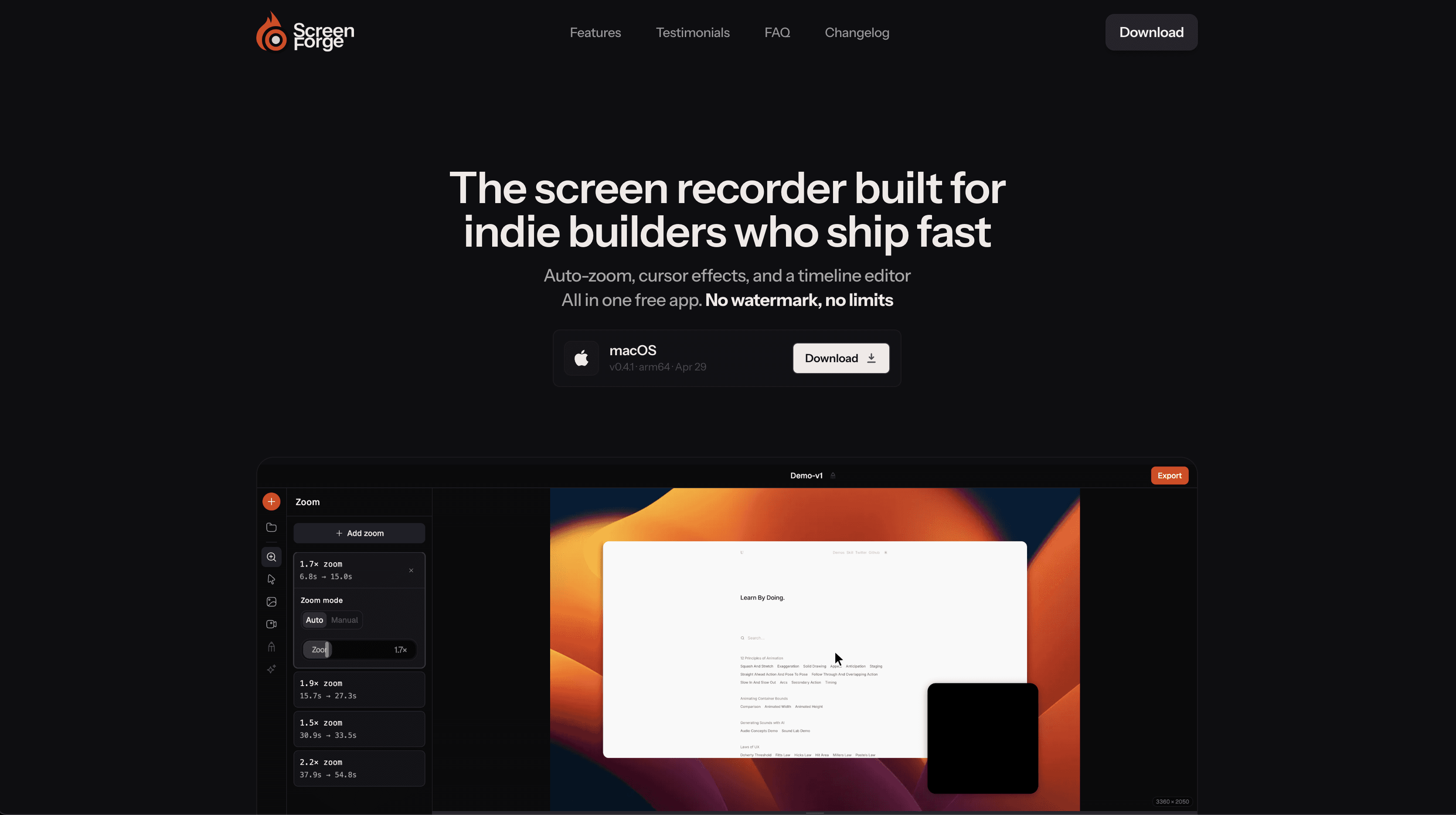
Screenforge is an all-in-one screen recording software that combines recording, automatic zoom, cursor effects, and built-in timeline editing into a single application. Unlike other tools that require you to manage separate applications for each task, Screenforge brings everything into one place. This means you can go from capturing your screen to exporting a polished video without missing a beat.
With a focus on accessibility, Screenforge ensures that powerful features are available to everyone, regardless of budget. Whether you are creating tutorials, product demos, or client presentations, Screenforge is designed to streamline the entire video creation process.
The Problem Screenforge Solves
The pain point many users experience with screen recording is the time-consuming nature of the process. Traditional methods often involve using separate tools for recording, then editing, and finally exporting, each with its own learning curve. This can lead to lost productivity, especially for indie developers who are often juggling multiple roles.
Moreover, many existing tools come with hidden costs or limitations, such as watermarks on exports that diminish the professional quality of the videos. Screenforge addresses these frustrations by providing a user-friendly interface that allows you to create clean, professional videos without the need for multiple subscriptions or complicated workflows.
How Screenforge Works
Using Screenforge is straightforward and efficient. Here’s a step-by-step overview of the typical workflow:
- Download and Install: Start by downloading Screenforge from the official website. Installation is quick and easy.
- Choose Your Recording Settings: Select whether you want to record your full screen, a specific window, or a custom region. You can also choose to include webcam footage by adding a camera overlay.
- Configure Audio Inputs: Set up your microphone and ensure you have live level monitoring enabled for clean audio recording.
- Begin Recording: Hit the record button and perform the actions you want to capture. Screenforge's automatic zoom will detect where the action is happening and adjust the view accordingly.
- Edit in Real-Time: As you record, you can take advantage of the timeline editor to split, trim, or rearrange clips without needing to switch to another application.
- Add Final Touches: Enhance your video with cursor effects, background adjustments, and zoom settings that fit your content needs.
- Export Your Video: When you're satisfied with your creation, export the video in your preferred format, free of any watermarks or branding.
This seamless workflow not only saves time but also ensures that you maintain focus on creating your content rather than getting bogged down by the tools.
Key Features of Screenforge
- Automatic Zoom: Screenforge intelligently detects the most crucial parts of your recording and automatically applies zoom effects, making it easy to keep viewers engaged.
- Cursor Effects: Customize your cursor to enhance clarity, including click ripple effects and motion blur, ensuring that every click is visible and professional.
- Timeline Editing: A built-in timeline editor allows you to split, trim, and rearrange your video clips non-destructively, giving you total control over your final product.
- Camera Overlay: Record your screen and webcam simultaneously, making it easy to add a personal touch to your tutorials and demos.
- No Watermark Exports: Export your recordings cleanly without any branding or watermarks, allowing you to present your work professionally.
- Background and Padding Options: Add backgrounds and adjust the padding and corner radius of your recordings to give them a polished look, transforming raw footage into refined presentations.
These features position Screenforge as a versatile tool that meets the needs of indie builders and professionals alike, ensuring that creating high-quality screen recordings is not only possible but also enjoyable.
Who Screenforge is For
Screenforge is primarily tailored for indie builders, developers, and anyone looking to create professional screen recordings quickly. Here are a few personas that would benefit from using Screenforge:
- Indie Developers: With the need to showcase their projects effectively, indie developers can use Screenforge to create tutorials and demos without getting bogged down by complicated software.
- Content Creators: YouTubers and online educators will find Screenforge invaluable for recording instructional videos and walkthroughs, ensuring their content is both engaging and professional.
- Client Presenters: Professionals who need to present projects or ideas to clients can use Screenforge to create polished demos that leave a strong impression.
By catering to these personas, Screenforge not only simplifies the screen recording process but also empowers users to present their work in the best possible light.
Screenforge vs Alternatives
When considering alternatives to Screenforge, several popular tools come to mind, including OBS Studio, Camtasia, Snagit, and Loom. Each of these tools has its strengths, but they also come with trade-offs.
- OBS Studio: While OBS is a powerful open-source tool great for live streaming and recording, it lacks built-in editing features and can have a steep learning curve for beginners. Users often find they need to use additional software for editing, which can complicate the workflow.
- Camtasia: Camtasia is known for its robust editing capabilities, but it comes at a price. It requires a one-time purchase, which may not be feasible for indie developers on a budget. Additionally, its complexity can deter users looking for a simple solution.
- Snagit: Snagit offers simple screen capture capabilities but falls short in video editing features. It’s more suited for quick captures rather than comprehensive video creation.
- Loom: While Loom is excellent for quick video sharing, it imposes limitations on recording length in its free version and adds watermarks to exports, which can detract from professionalism.
In comparison, Screenforge stands out by offering a comprehensive solution without the need for multiple applications, all while keeping the core features accessible to everyone for free.
Real-World Use Cases
- Tutorial Videos: An indie developer can use Screenforge to record a step-by-step tutorial on using their latest app, utilizing automatic zoom to highlight key features as they demonstrate.
- Product Demos: A product manager can create a polished demo video of their software, showcasing the interface and functionality while using cursor effects to draw attention to important actions.
- Developer Walkthroughs: A coder can record a live coding session, employing Screenforge’s timeline editing to cut out mistakes and produce a clean final video for sharing with peers.
- Client Presentations: A freelancer can record a presentation for a client, incorporating webcam footage to personalize the experience and using zoom effects to emphasize their work effectively.
- Internal Training Videos: A team leader can create training materials for new employees, utilizing Screenforge to ensure the videos are engaging and informative without the need for extensive editing skills.
Getting Started with Screenforge
Ready to simplify your screen recording process? Getting started with Screenforge is easy. Visit the Screenforge website and download the application for macOS. Installation is quick, and once you open the software, you’ll find an intuitive interface that makes it easy to begin recording right away.
FAQ
Is Screenforge free?
Yes, Screenforge offers all its core features for free, allowing users to create high-quality videos without any hidden costs.
Which platforms does Screenforge support?
Currently, Screenforge is available on macOS. Windows and Linux support are planned for the future.
Can I record my screen and webcam at the same time?
Yes, Screenforge allows for simultaneous recording of both screen and webcam, enabling a more personal touch in your videos.
Does it record audio?
Absolutely! Screenforge supports microphone input, complete with live level monitoring to ensure clear audio.
How does automatic zoom work?
Screenforge uses intelligent algorithms to detect cursor movement and areas of interest in your recording, applying zoom effects automatically where needed.
Are there any limits to the recordings?
No, Screenforge allows you to record without limits and exports without watermarks, offering a truly professional experience.
Bottom Line
Screenforge is a powerful tool that streamlines the process of creating high-quality screen recordings. With features like automatic zoom, cursor effects, and built-in editing, it offers indie developers and content creators a comprehensive solution without the hassle of switching between tools. If you're looking to elevate your video presentations and tutorials, give Screenforge a try at Screenforge. Experience the ease of creating polished videos without the headaches of traditional recording methods.